 Markit | Docs
Event Organizers
Add co-hosts, promoters, and other roles to help manage and grow your event.
Overview
Organizer roles let you bring other people onto your event without handing over your whole account. Each role has its own set of permissions, so you can give someone exactly the access they need — from checking guests in at the door to selling tickets on your behalf for a share of the revenue.
You manage organizers from your event's dashboard: open the event, go to the Guest List tab, then switch to the Organizers sub-tab. From there, press Add Organizer to assign a new role.
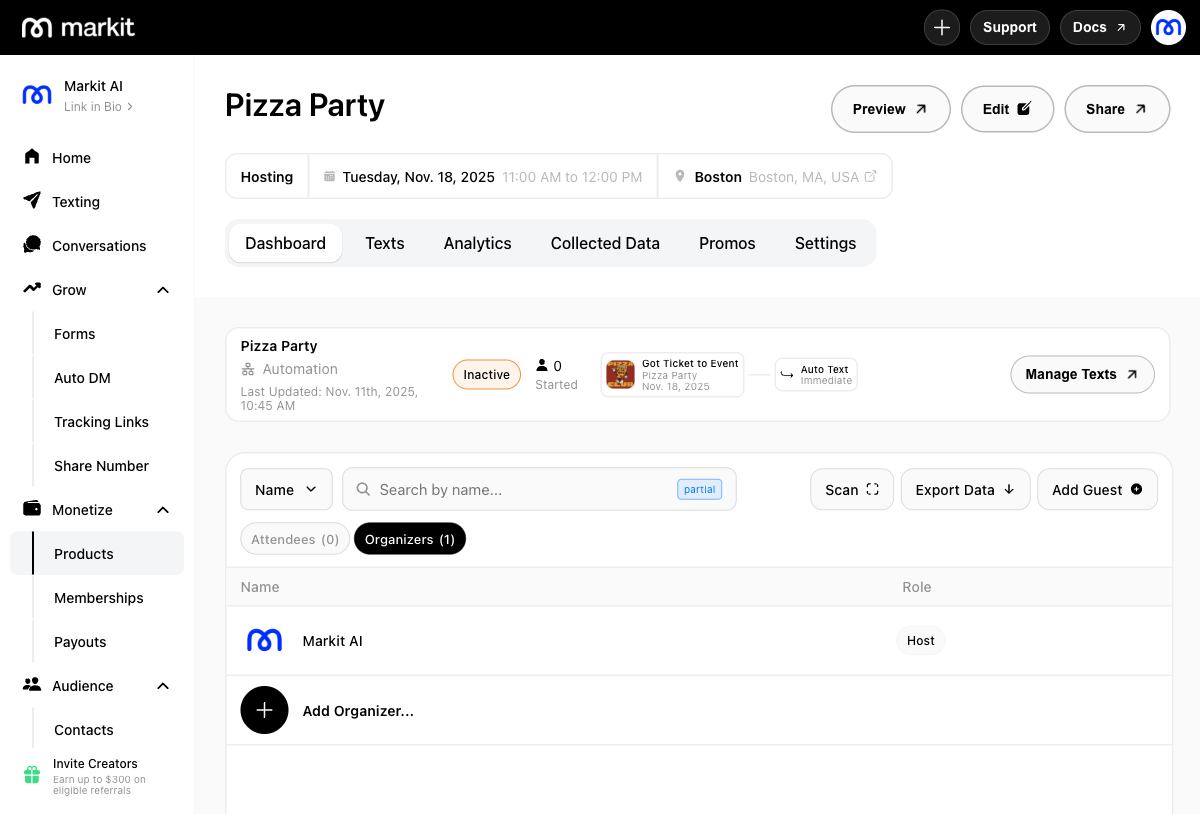
Organizer Roles
- Co-Host — Full management access to the event, including editing event details. Co-hosts are listed publicly on the event page.
- Scanner — Can check guests in at the door using their ticket. No access to event editing or the dashboard.
- Promoter — Sells tickets through their own unique tracking link and earns a percentage or flat dollar amount per ticket sold. Promoters can see their own sales but not your full event dashboard. See the Promoter guide for a full walkthrough.
- Alternate Payment Collector — Redirects a paid event's ticket revenue to their own connected Stripe account instead of yours. See the Alternate Payment Collector guide for a full walkthrough.
Assigning a Role
- Choose a role and configure its options (for example, a promoter's revenue share).
- Search for someone to assign the role to directly, or press Save & Skip to generate a shareable link you can send to anyone — they'll be prompted to accept the role when they open it. See Accepting an Organizer Role for what they'll see on their end.
That search only finds people who've already held an organizer role (Co-Host, Scanner, Promoter, or Alternate Payment Collector) on one of your other events — it's not a general Markit user search, and it doesn't include your followers who haven't organized for you before. For anyone new, use Save & Skip and send them the link instead.
Once assigned, you can edit or remove an organizer's role at any time from the same Organizers tab.