 Markit | Docs
Accepting an Organizer Role
What to do when you receive a shareable link inviting you to an organizer role on someone's event.
Overview
If an event host adds you as an organizer — Co-Host, Promoter, Scanner, or Alternate Payment Collector — without assigning you directly, they'll send you a shareable link instead. Opening that link starts the process of accepting your role. This is done on markitai.com, even if you'll manage the role from the Markit app afterward.
Step 1: Open Your Invite Link
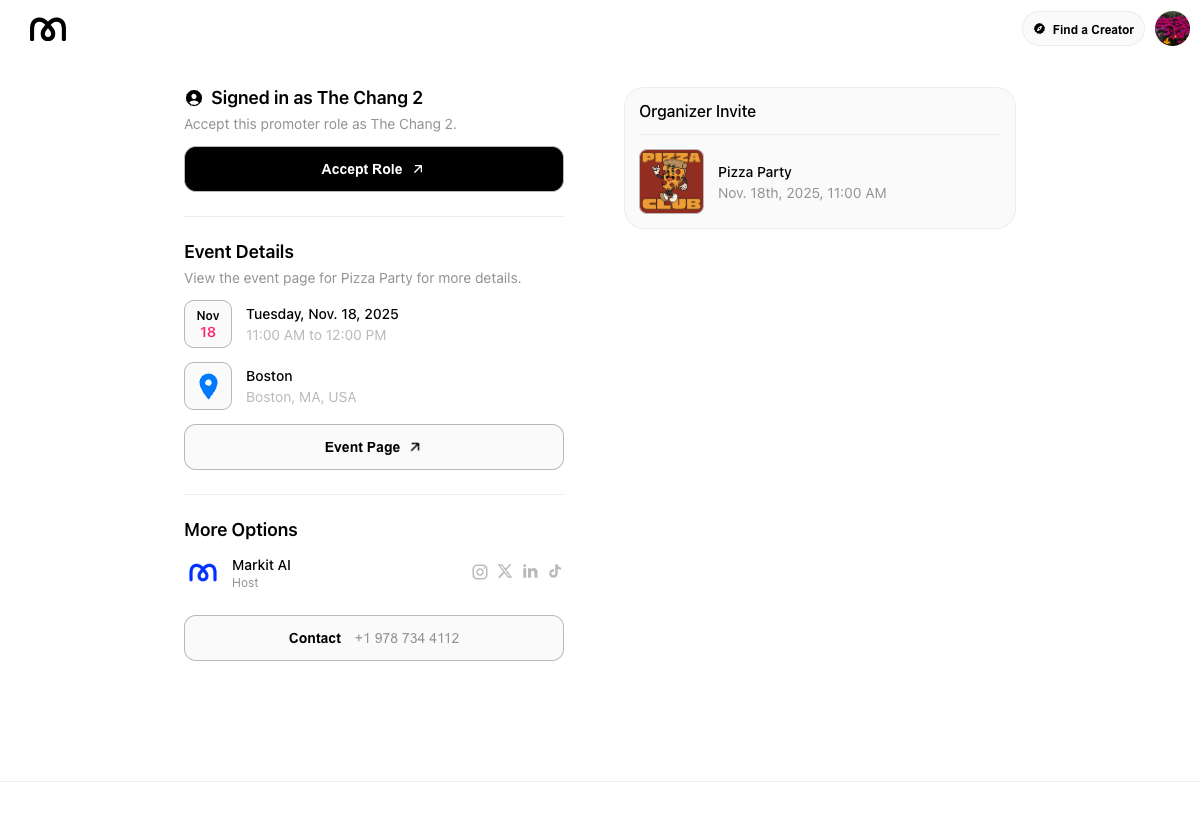
The link the host sends you leads to an "Organizer Invite" page for their event, showing which role you've been offered.
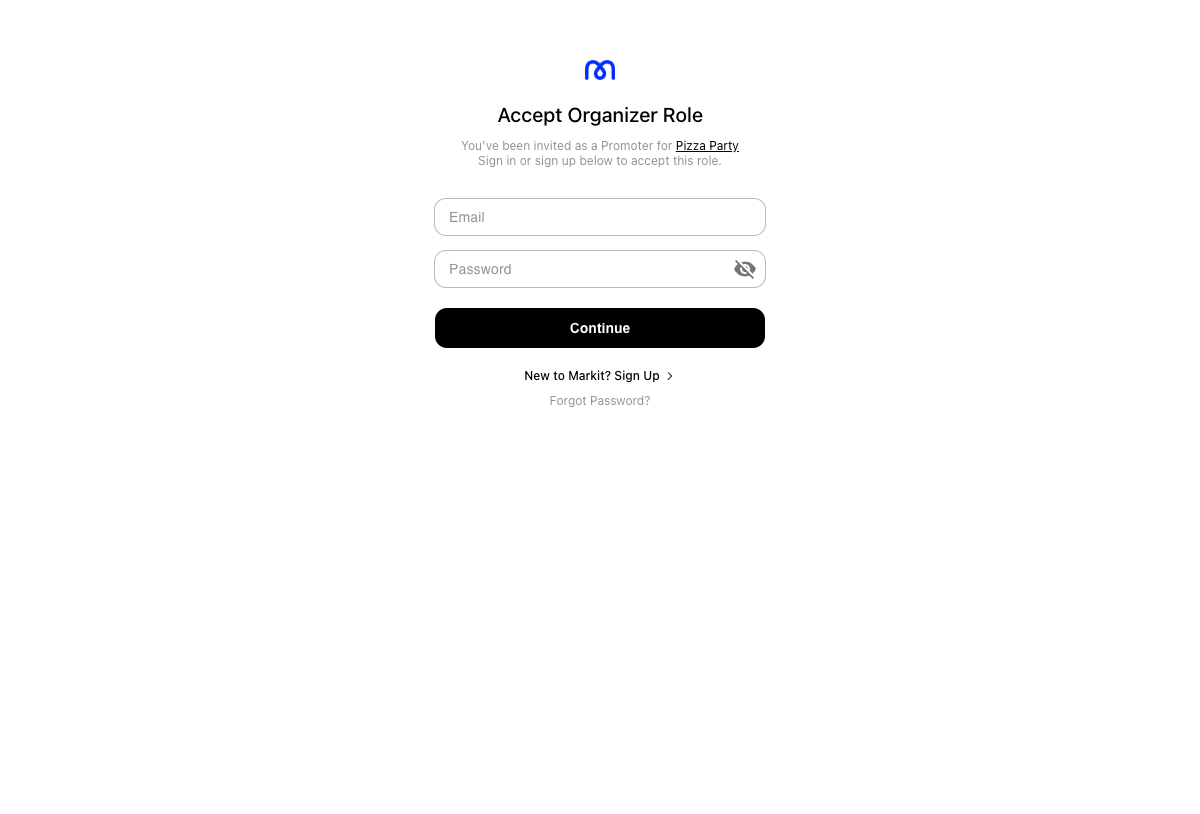
Step 2: Create or Log In to Your Account
If you don't already have a Markit account, press Sign Up to create one instead of logging in. Either way, once you're signed in, you'll be brought back to the same invite page automatically.
If you're already signed in under the correct account, you'll skip straight to accepting the role.
Step 3: Accept the Role
Press Accept Role on the invite page. Once it's confirmed, you'll be taken to the event's dashboard.
If you're accepting on a mobile device's browser, there's no mobile dashboard view — switch to a desktop browser, or download the Markit app from the App Store to manage your role from your phone.
Step 4: Use Your Role
From here, what you can do depends on your role:
- Promoter — see the Promoter guide for how to get your tracking link and start earning from sales.
- Co-Host — you'll have full management access to the event from the dashboard, including editing event details.
- Scanner — you'll be able to check guests in at the door using their ticket.
- Alternate Payment Collector — the event's ticket revenue will route to your connected Stripe account. If you haven't connected Stripe yet, your dashboard shows a banner prompting you to connect it — until then, revenue keeps going to the host instead. See the Alternate Payment Collector guide for more on what you'll see.
See Event Organizers for the full breakdown of what each role can do.