 Markit | Docs
Images
Showcase high-quality photos, graphics, or visual assets in a dedicated gallery format.
Hosting Images
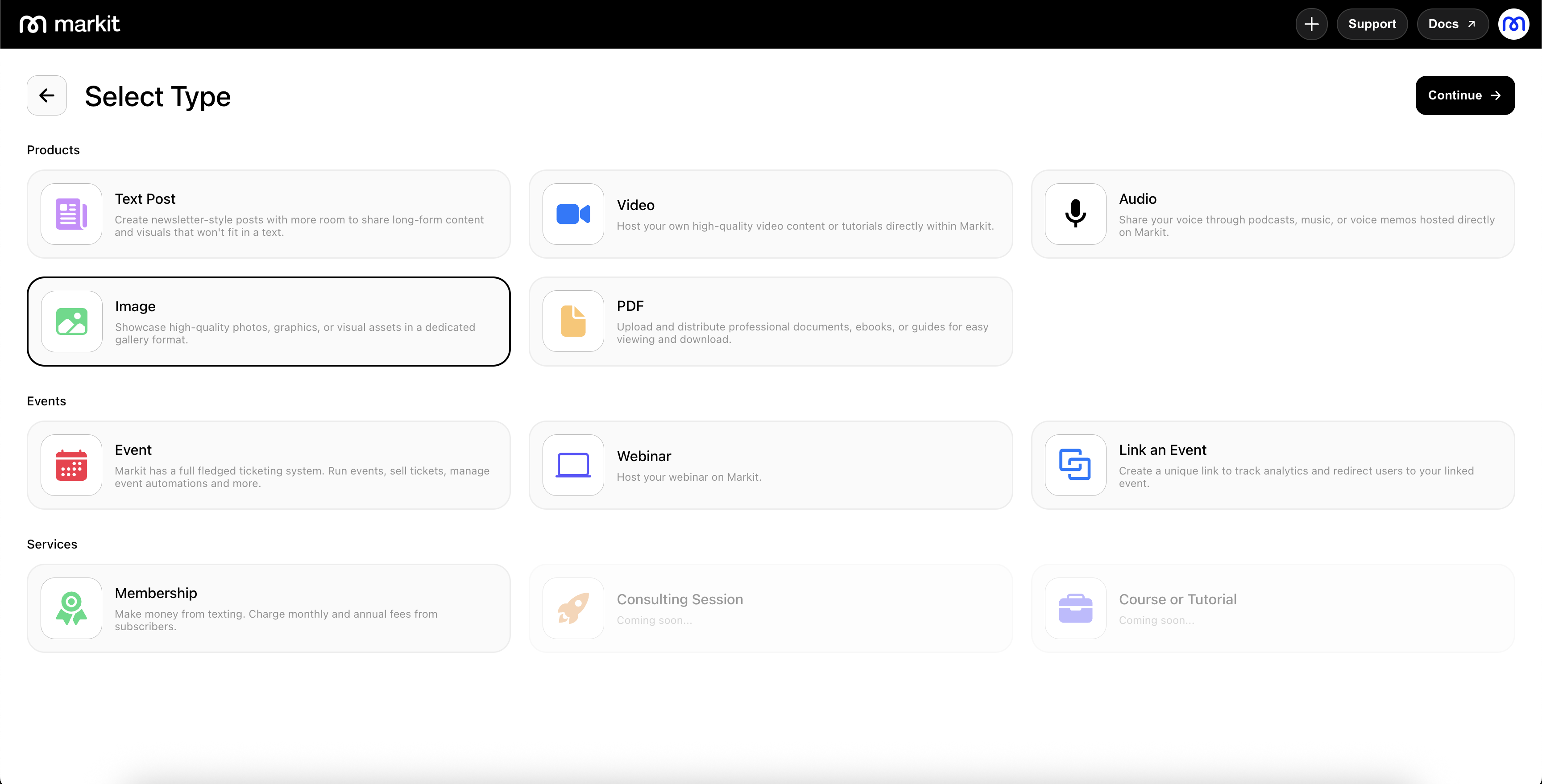
To host a new image, go to the Products tab and select "New Product" on the top-right. Then, select the "Image" option and press "Continue" on the top-right.
Upload Screen
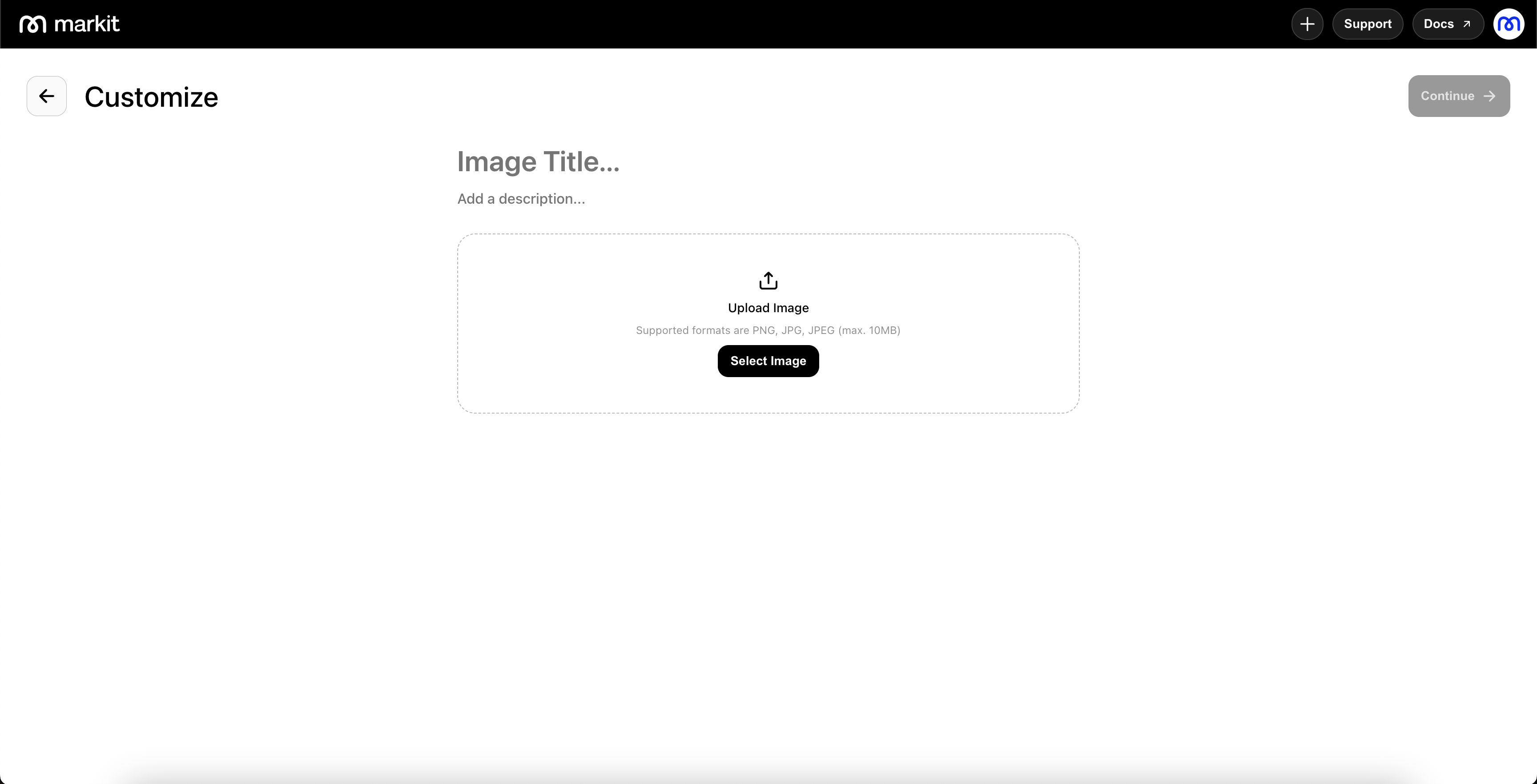
The upload screen allows you to upload an image file from your computer. Within our mobile app, you can also directly take a photo or select from your gallery instead of uploading an existing image.
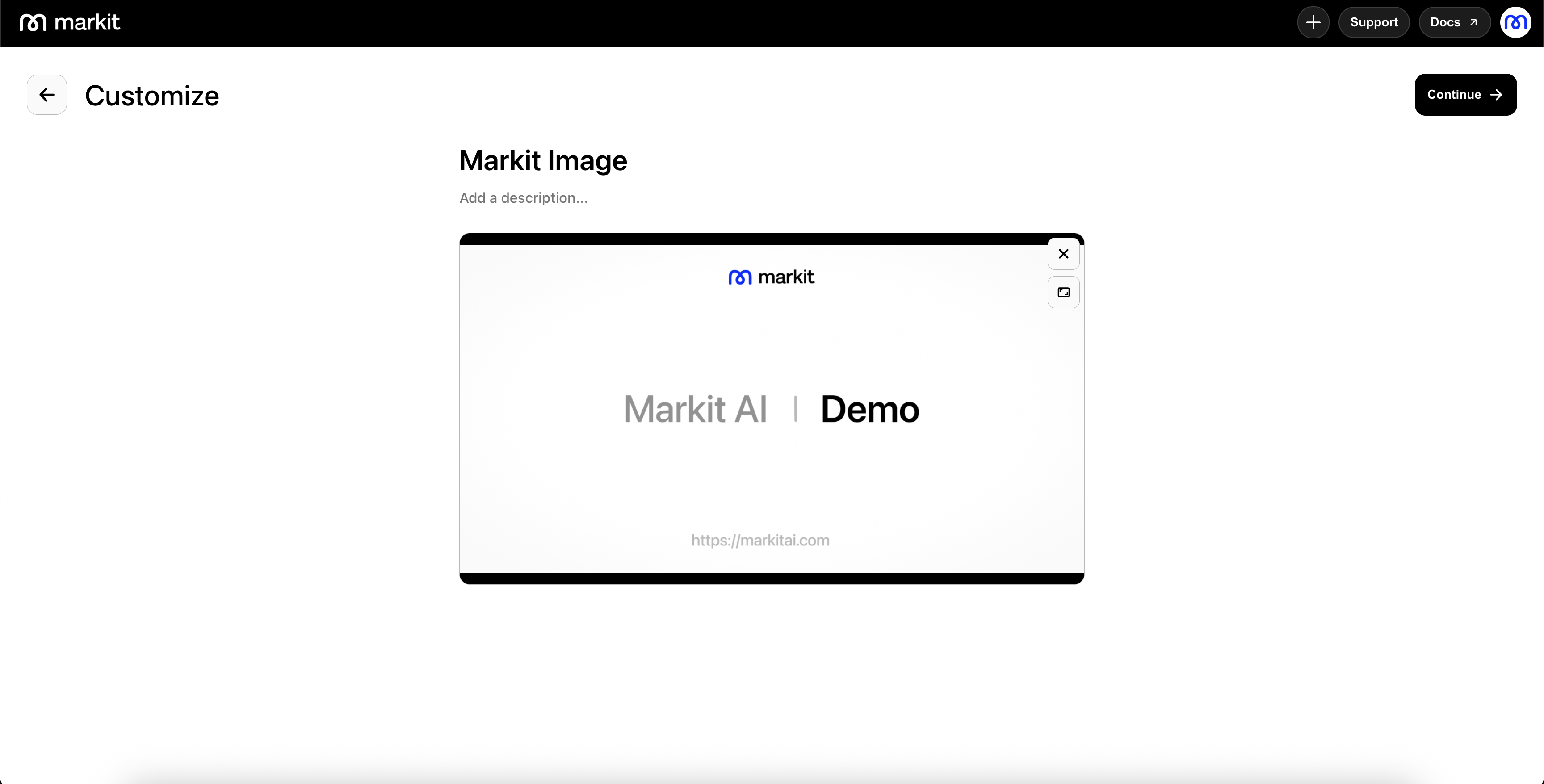
After adding your image, you can preview the image. The aspect ratio defaults to the standard format from the image's dimensions, but you can modify the aspect ratio from a set of options. On upload, the image itself serves as the thumbnail, which can be modified in the next stage.
Settings
Within the settings panel, you can control who is allowed to view your product by adjusting visibility options such as “Subscribers Only” or “Paid Subscribers Only,” which ties directly into your memberships. You can also toggle whether to "Allow Download" to decide whether the viewer can download the content.
You will also see the thumbnail image for your product in the "Social Preview" section. This is what will be used on link previews and on your profile link in bio page.