 Markit | Docs
Instagram Automations
Set up triggers that automatically DM people who comment, reply to your stories, or message you
Instagram automations let you automatically send a DM when someone comments on your content, replies to your story, or DMs you a keyword. Each automation has a trigger (what to watch and what keyword to listen for) and a DM message (what gets sent when the trigger fires).
In this section
This page covers the shared setup every automation uses — trigger types, keywords, replies, links, and creating an automation. The following pages cover what an automation can do when it fires:
- Send as Text Automation — prompt the person's phone number over DM and automatically subscribe and text them your customized message, instead of just replying with a message.
- Require Follow — require people to follow you before the DM is sent.
- Track Submissions — see how many people each automation reached and converted, and mass-text everyone who converted through it.
Trigger types
There are three kinds of triggers: comments on your posts and reels, replies to your stories, and DM keywords sent to your account.
Comments on posts or reels
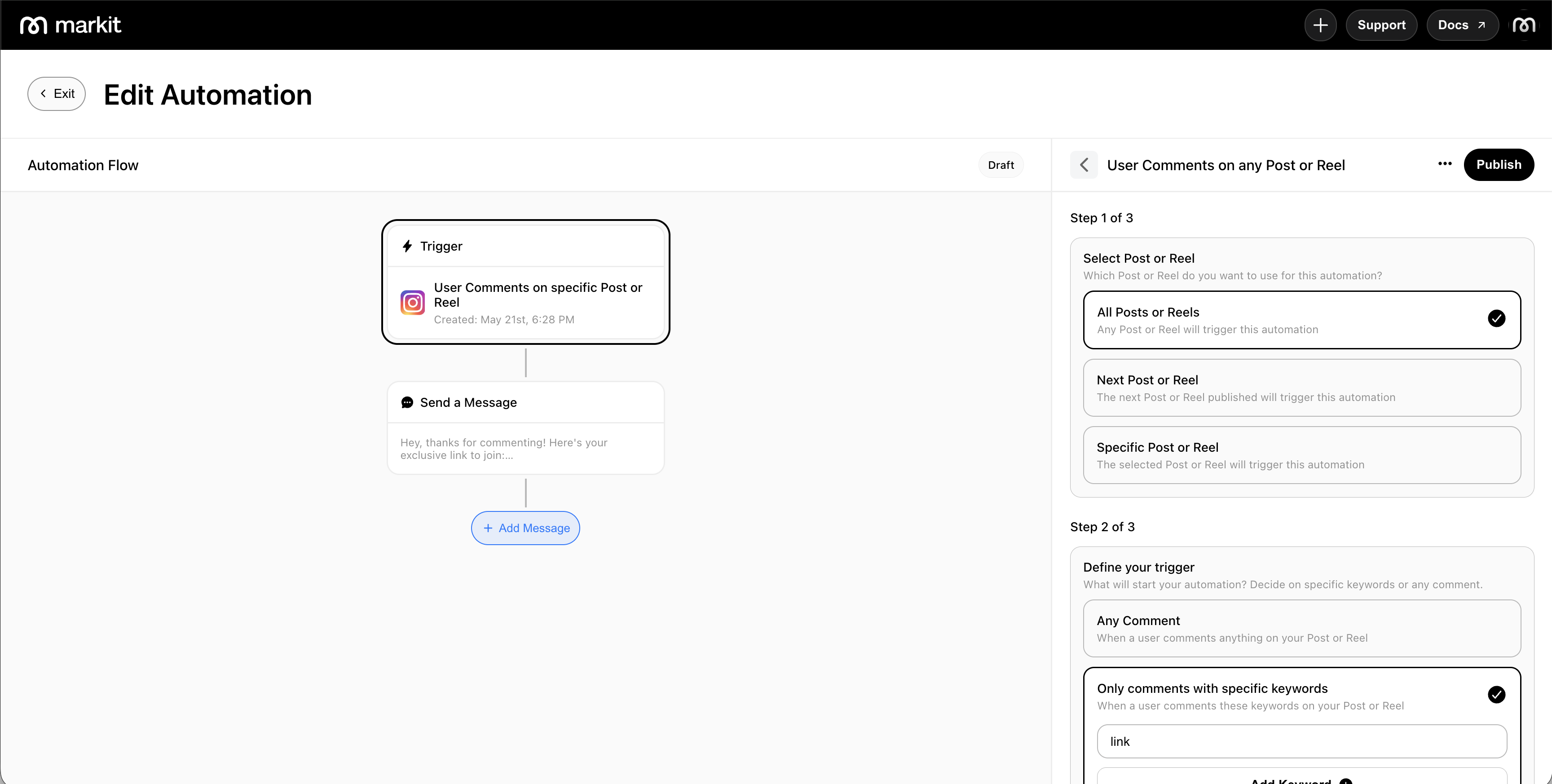
Specific post or reel
Fires when someone comments on a single post or reel you select. Only comments on that piece of content will trigger the DM.
Use cases: Giveaways tied to a specific post, product drops, event signups, link delivery on a particular reel.
All posts or reels
Fires when someone comments on any post or reel on your account. Useful when you want a single automation to cover your entire feed rather than setting one up per post.
Use cases: Always-on keyword campaigns, general audience capture across all content.
Next post or reel
Fires when someone comments on the next post or reel you publish after creating the automation. The automation automatically attaches to your upcoming content so you can set it up before you go live. Once your next post or reel is published and the first comment is made, this trigger converts into a specific post or reel trigger type.
You can only have one of these triggers across all automations at a single time. We disable creating another trigger of this type when one exists already.
Use cases: Launch posts, announcements, or any time you want the automation ready before the content goes out.
Story replies
Fires when someone replies to one of your Instagram stories. Choose which stories to watch:
- Specific story — only replies to the story you select. Markit lists the stories you currently have live, and picks the most recent by default.
- All stories — replies to any of your stories.
- Next story — replies to the next story you publish after creating the automation. Once the first reply comes in, this converts into a specific story trigger. You can only have one Next Story trigger per Instagram account.
Instagram stories disappear after 24 hours, so a specific story trigger stops firing once that story expires. For always-on story automations, use "All stories".
Use cases: Polls and question stickers, "reply with a word to get the link" stories, quick giveaways.
DM keyword
Fires when someone sends your Instagram account a DM containing one of your keywords. A DM keyword trigger always needs at least one keyword — without one, every DM you receive would send the automation.
Messages you send yourself are ignored. If someone is in the middle of a Send as Text conversation (entering their phone number or name), their messages are treated as answers to that conversation and don't fire a DM keyword automation.
Use cases: "DM me PRICE for pricing", "DM me GUIDE", replying to inbound questions with the same answer.
Keywords
Comment and story reply triggers support an optional keyword filter. When set, only comments or replies that contain the keyword will trigger the DM — the rest are ignored. DM keyword triggers require at least one keyword.
- Keywords are not case-sensitive ("link", "LINK", and "Link" all match)
- Contained matching — a keyword fires if it appears anywhere inside the comment, including as part of a longer word
- If no keyword is set on a comment or story reply trigger, any comment or reply on the selected content will fire the automation
Matching examples (keyword: "drop"):
| Comment | Fires? |
|---|---|
| "drop it!" | ✅ Yes — contains "drop" |
| "what's the drop date?" | ✅ Yes — contains "drop" |
| "can't wait for this drop" | ✅ Yes — contains "drop" |
| "love this!" | ❌ No — "drop" does not appear |
| "this is so cool" | ❌ No — "drop" does not appear |
Choose keywords that are specific enough to your call-to-action. Common or short words can appear in casual comments that weren't intended to trigger anything — for example, a keyword of "yes" would fire on someone saying "yes, love it!" even if they weren't asking for anything. Use words clearly tied to what you're offering, like "guide", "template", or "waitlist".
Add keyword variations to catch how people naturally phrase things. If your caption says "comment DROP or NEW DROP for access", add both as separate keywords in the same automation so either phrasing fires the DM. Think about how your audience might spell or space out the word and cover those cases.
Tip: Words called out directly in your caption work best — "GUIDE", "TEMPLATE", "WAITLIST", "LINK".
Comment replies
Comment replies apply to comment triggers only — story replies and DMs have no public comment thread to reply to.
When setting up a comment automation, you can choose whether Markit also posts a public reply to the comment in addition to sending the DM. This is optional and can be toggled on or off per automation.
Replies off: Only the DM is sent. The comment thread stays clean with no automated response visible to others.
Replies on: Markit posts a reply to the comment (e.g. "Sent you a DM! 📩") in addition to sending the DM. This can increase visibility and prompt other people viewing the comments to comment too.
Bot detection risk
Enabling comment replies increases the visibility of your automation and can raise the chance of Meta flagging your account for bot-like behavior — particularly if every comment receives the exact same reply.
To reduce this risk, add multiple reply variations when replies are turned on. Markit will rotate through them randomly so the replies don't appear identical across comments.
Examples of varied replies:
- "Check your DMs! 👀"
- "Sent you a message!"
- "DM on the way 🙌"
- "Headed to your inbox now!"
The more variation you add, the more natural the replies appear to Instagram's systems.
Add a link
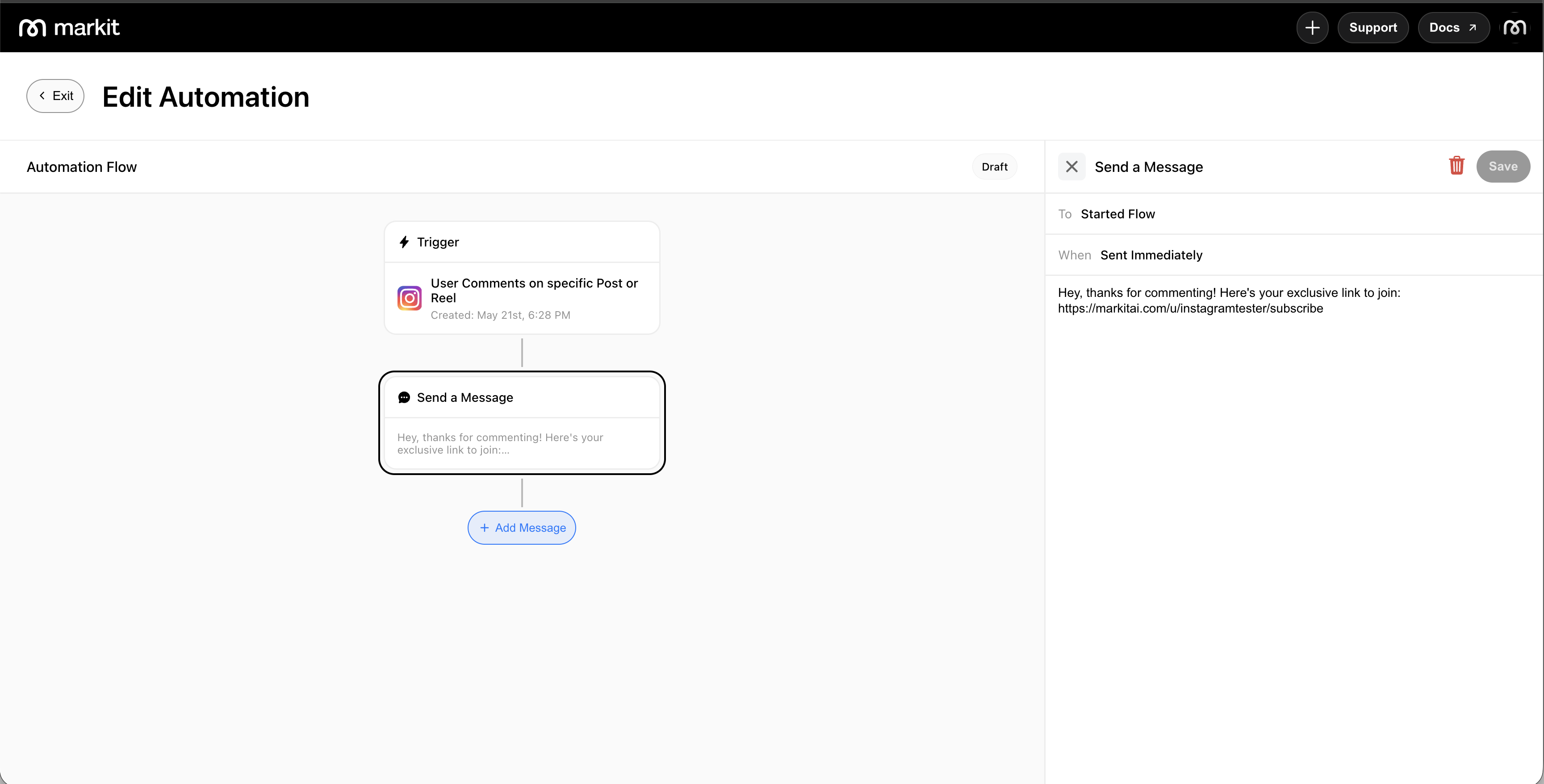
When editing a DM message, you can attach a link to your Markit content. When adding a link, you choose how it displays in the DM: as an inline link embedded in the message text, or as a button link shown as a tappable button below the message.
| Inline Link | Button Link | |
|---|---|---|
| Appearance | Clickable URL within the message text; shows as a link preview if placed at the end of the message | Tappable button displayed below the message |
| Best for | Conversational messages where the link flows naturally in the text | Clean, prominent CTAs with a clear label |
You can combine both in the same message — for example, a link mentioned naturally in the text plus a button as the primary CTA.
How to add a link
- While editing the DM message, tap the attachment icon in the toolbar below the text input.
- Select what the link should point to — your Markit subscribe link, or one of your event or product pages.
- Tap Next.
- Choose Inline Link to embed the URL in the message text, or Button Link to display it as a tappable button.
- If using a Button Link, enter a button title — this is the label displayed on the button (max 20 characters).
- Tap Create. The link or button appears in the message preview.
Repeat to add additional links. Tap the ✕ icon on a link or button to remove it.
Create an automation
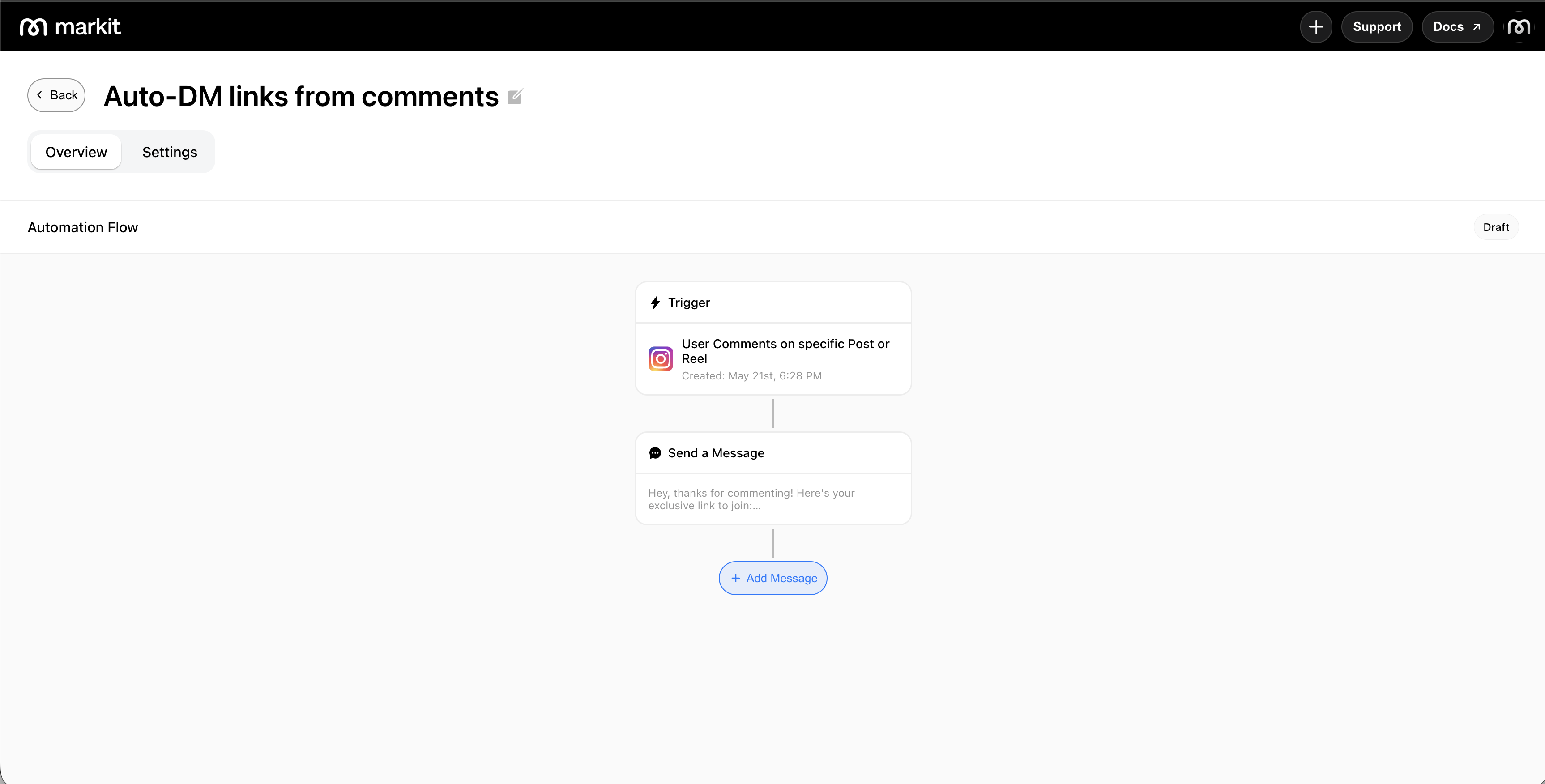
- Go to Auto DM and tap New Automation.
- View the trigger item to view the Trigger Summary Panel. Edit the incomplete trigger.
- If you have more than one Instagram account connected, choose which account this trigger applies to from the account dropdown.
- Select your trigger type: comments on a post or reel, replies to a story, or a DM keyword. Then choose whether it applies to a specific, any, or the next post, reel, or story.
- If using a specific post, reel, or story trigger, select the content from your feed or your live stories. Markit suggests a default name for the automation based on that post's caption — you can rename it at any time.
- Optionally set a keyword the comment or reply must contain to fire the DM (required for DM keyword triggers).
- For comment triggers, choose whether to enable comment replies and, if on, add multiple reply variations.
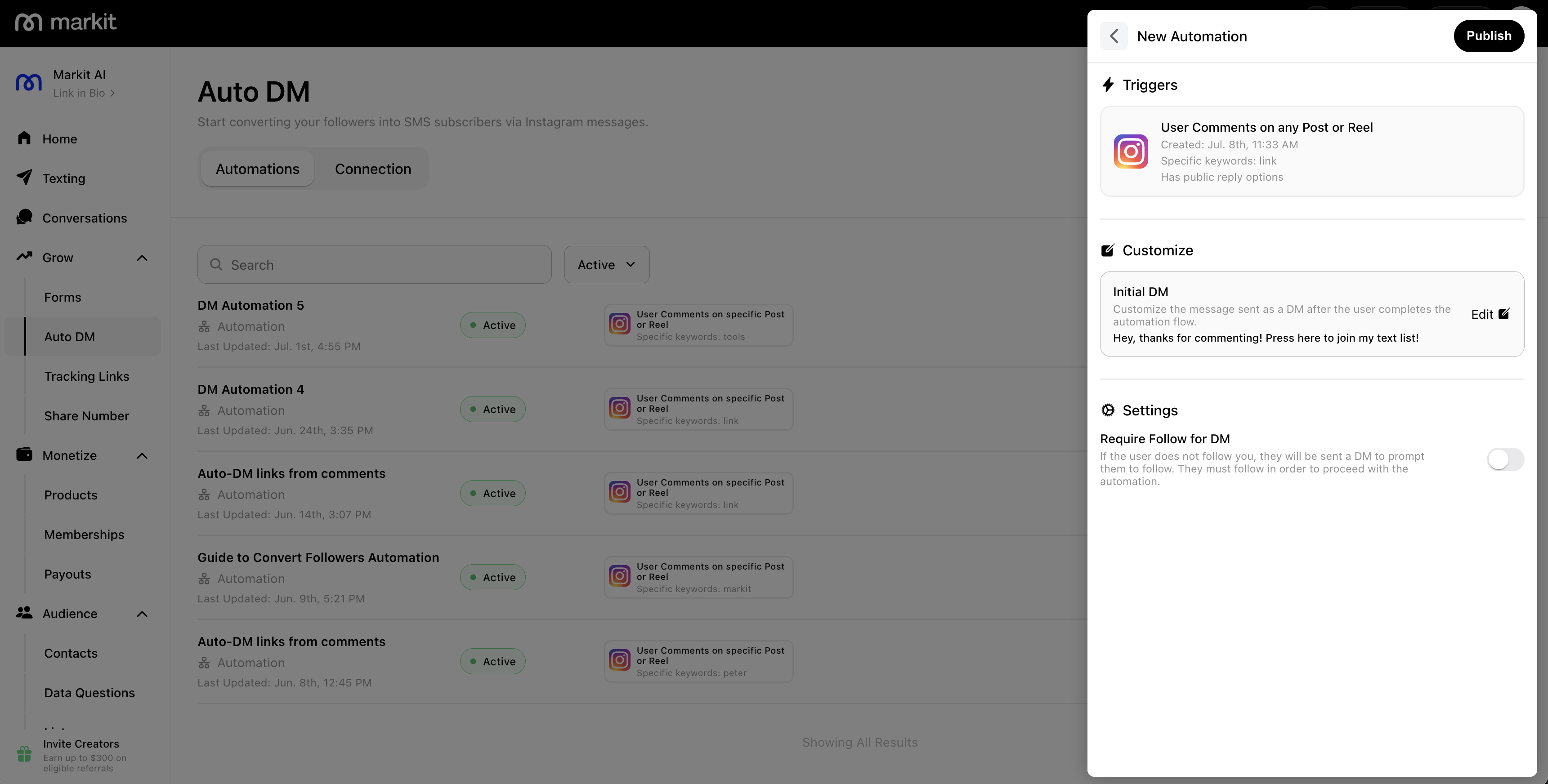
- Customize the initial DM sent to the user after they've triggered the automation — or turn on Send as Text to prompt for their phone number and subscribe them instead.
- Optionally enable Require follow to prompt people to follow before receiving the DM.
- Tap Publish to activate the automation.
Automation settings
| Setting | Description |
|---|---|
| Trigger type | What to watch — comments on posts/reels, replies to stories, or DM keywords, each for a specific, any, or next item |
| Post, reel, or story | The specific content to attach to (specific trigger only) |
| Keyword | Only comments, replies, or DMs containing this word will fire the automation (optional, except required for DM keyword) |
| Comment replies | Whether to post a public reply to the comment (comment triggers only); add variations to reduce bot detection risk |
| Require follow | When on, people must tap "I Followed" before the DM is sent; shown to everyone regardless of current follow status |
| DM message | The message sent to the commenter when triggered |
| Buttons (optional) | Tappable buttons attached to the DM that link to your Markit content; mobile only |
| Active / Paused | Toggle the automation on or off |
Automation priority
If a comment, reply, or DM could match more than one active automation, Markit uses a priority order to decide which one fires. Only the highest-priority matching automation executes — the others are skipped.
Priority order (highest to lowest):
- Specific post or reel
- Next post or reel
- All posts or reels
Markit checks the highest-priority trigger type first. If that automation exists but its keyword condition isn't met (or the automation is paused), it moves down to the next trigger type and checks that one, and so on until it finds a match.
Example — keyword mismatch falls through: You have a "specific post" automation with the keyword "LINK" and an "all posts" automation with no keyword. A user comments "love this" on that post — the specific post automation is checked first, but "love this" doesn't contain "LINK", so it's skipped. The "all posts" automation has no keyword requirement, so it fires instead.
Example — paused automation falls through: You have a "specific post" automation (paused) and an "all posts" automation (active). A user comments on that specific post — the specific post automation is skipped because it's paused, and the "all posts" automation fires instead.
Story replies follow the same idea with their own order — specific story, then next story, then all stories. Comments, story replies, and DMs are matched separately: a comment only checks comment triggers, a story reply only checks story reply triggers, and a regular DM only checks DM keyword triggers.
Breaking ties within the same trigger type
If more than one active automation of the same trigger type could match a comment (for example, two "all posts or reels" automations), Markit breaks the tie in this order:
- An automation with a keyword condition beats one without. If one matching automation has a keyword set and another doesn't, the one with the keyword takes precedence — even if it was created earlier.
- Most recently created wins. Among automations that are still tied after step 1 (e.g. both have a keyword, or both have none), the one created most recently fires.
If the automation selected by this order is paused, Markit falls back to the next one in the same order, and so on.
Example: You have two "all posts or reels" automations — one created last week with the keyword "LINK", and one created yesterday with no keyword. A user comments "send me the LINK" — even though the no-keyword automation is newer, the keyword automation wins because keyword-matching automations are checked first.
Best practices
- Use specific keywords to avoid triggering on every comment. Single words like "INFO", "LINK", or "JOIN" work well and are easy to call out in your caption.
- Lead with what you promised — open the DM with the thing they wanted (the link, the guide, the freebie), then follow with your signup link. An intro message followed by the link converts better than leading with the ask.
- Keep the DM short and direct — deliver the value immediately with a clear next step.
- Add reply variations if comment replies are enabled — rotating responses look more natural and lower the risk of being flagged by Meta.
- Avoid duplicate keywords across "all posts" automations — if two active "all posts" automations use the same keyword, Markit will warn you at creation time.
- Use Require follow selectively — enable it on growth-focused posts (viral reels, giveaways) and leave it off on conversion-focused posts (product drops, event signups) where extra friction costs you more than a follow is worth.
Limits and policies
Rate limits
Markit enforces a limit of 200 automated DMs per hour per connected Instagram account. This is in place to stay well within Instagram's API limits and protect your account from being flagged.
Any DMs that couldn't be sent in that window are queued and automatically delivered in the next hour — nothing is lost. You can also pause your automations at any time to stop the queue from filling further.
Other policies
- Each person can only trigger a given automation once — if they comment again on the same post, the DM will not be sent a second time.
- Overly promotional or spammy message content may be flagged by Instagram. Keep messages helpful and relevant.
- Automations only fire for public accounts. If your Instagram account is set to private, comment triggers will not work.
- Story reply and DM keyword automations only fire for messages other people send you. GIF and sticker replies to stories aren't delivered to Markit, so they can't trigger an automation.
- Collaborated posts are not supported. Automations only fire for posts where the connected Instagram account is the original publisher. If you are a collaborator on a post (a collab post owned by another account), comments on that post will not trigger the automation. Set up automations on posts published directly from your connected account.