 Markit | Docs
Disconnecting an AI tool
Remove an AI tool's access to your Markit account
You can cut off an AI tool's access to your Markit account at any time, and reconnect it whenever you like.
Disconnect in Markit
- In Markit, go to Settings → MCP.
- Under Connected Apps, find the app and click the ⋯ menu.
- Click Disconnect and confirm.
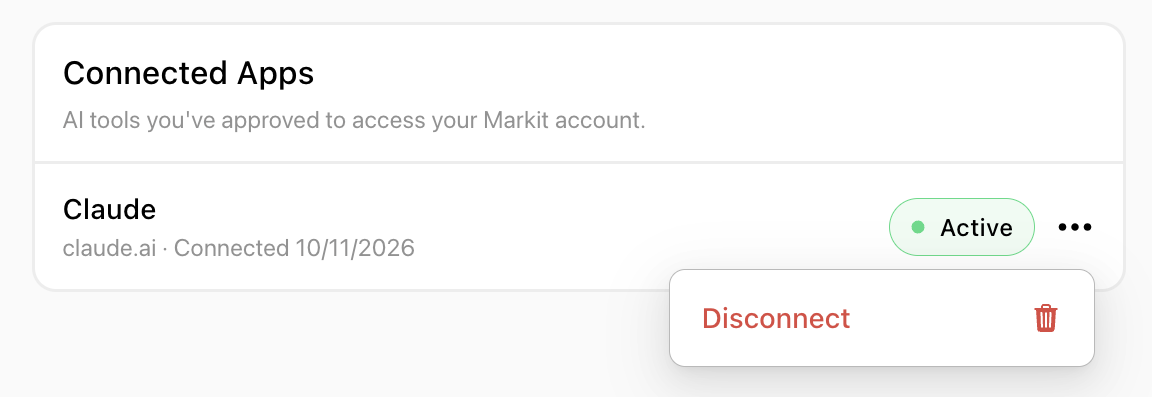
This immediately revokes every connection that app has to your account. If you connected the same app more than once (for example, Claude Code on two computers), it shows as one row, and disconnecting it removes all of them.
The connector still shows in your AI tool
After you disconnect in Markit, the Markit connector still appears inside your AI tool (for example, in Claude's Connectors list). That's because Markit can't change another app's settings. The connector no longer has access to your account, and the next time it tries to use Markit, it will ask you to sign in again.
To remove Markit from your AI tool completely, also delete the connector in that tool's settings.
Reconnecting
To reconnect, use the connector in your AI tool again (or add it again if you deleted it) and approve the connection on the Markit consent screen. See Connect your AI tool.