 Markit | Docs
Connect Facebook
Link your Facebook Page to Markit to enable Auto DM automations on Messenger
Connecting your Facebook Page to Markit only takes a few minutes. Once connected, you can set up automations that automatically send a Messenger DM to people who comment on your Page's posts.
Before you start
Make sure you have the following before connecting:
- A Facebook Page (personal Facebook profiles are not supported — automations run on Pages)
- Admin access to that Page. Only Page Admins can connect a Page to Markit. If you only have another role on the Page (Editor, Moderator, etc.), ask a Page Admin to connect it, or ask them to make you an Admin.
- Messaging turned on for your Page, so people are able to message it. If your Page doesn't allow messages, Facebook won't deliver your automated DMs.
- A Markit+ Subscription
If your Page is managed through a Meta Business account (Meta Business Suite / Business Manager), you also need to have access to that Page there. Markit asks for the permission Meta requires to find Business-owned Pages, but you still need to be an Admin of the Page itself.
Using another automation platform? If you are currently using ManyChat, or any other Facebook comment-to-DM tool, turn it off before connecting to Markit. Running multiple automation platforms on the same Page at the same time can cause conflicts, duplicate messages, and unexpected behavior. Overlapping tools also increase the risk of Meta flagging or restricting your Page. Disconnect or disable automations in any other platform first, then connect here.
Connect your Page
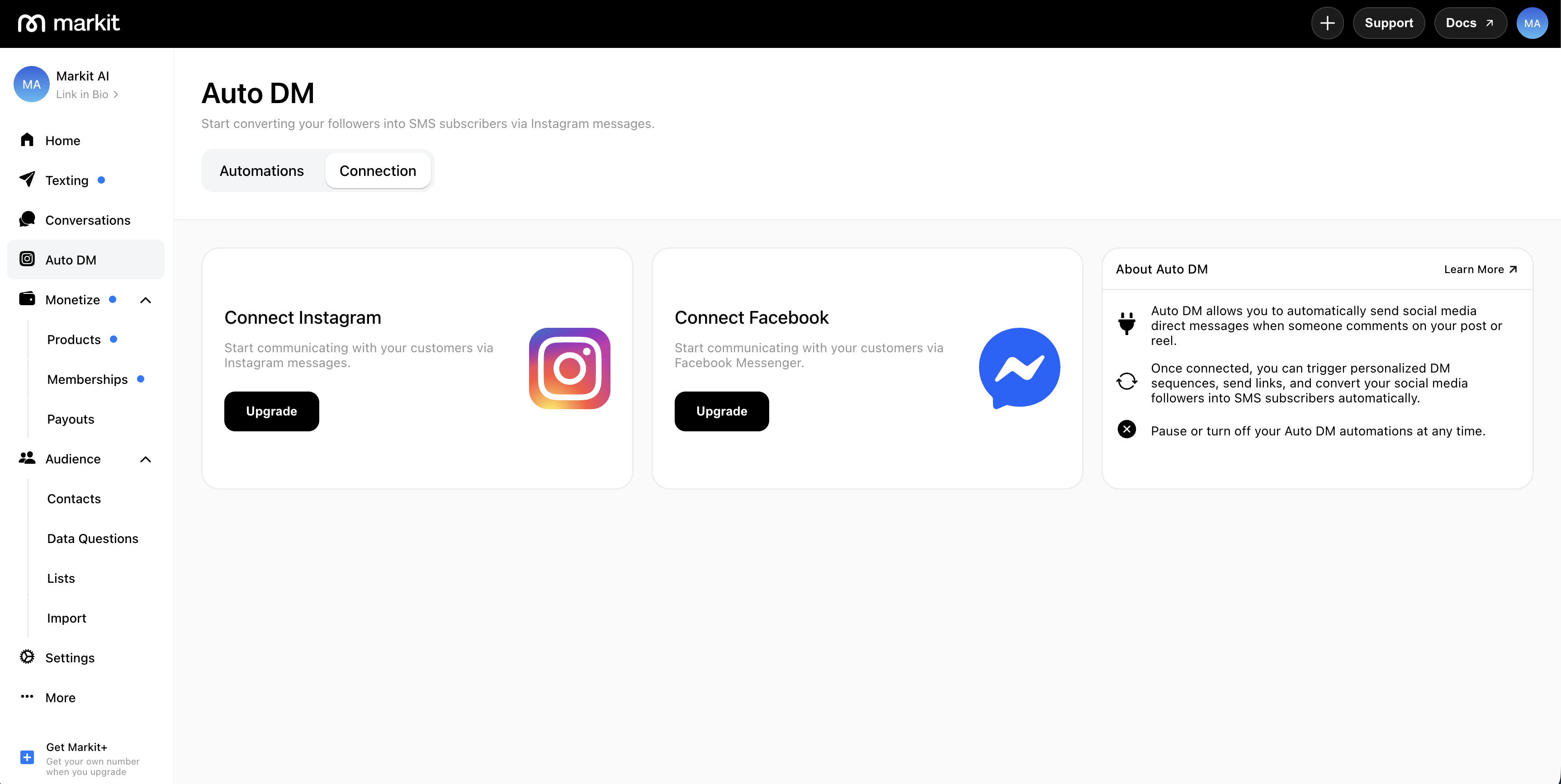
- In Markit, navigate to the Auto DM tab.
- Under Connect Facebook, tap or click Connect, then Connect again in the confirmation window.
- You'll be taken to Facebook. Log in with the Facebook account that is an Admin of the Page you want to connect.
- Facebook shows you the Pages you manage. Choose the Page (or Pages) you want Markit to have access to, then continue.
- Review the permissions Facebook lists and confirm them.
- You'll be redirected back to Markit to Choose a Page to connect. Tap Connect next to the Page you want to use.
- Your Page now appears as connected, and you can create your first Facebook automation.
Facebook lets you grant access to more than one Page at once, but Markit connects one Page per connection. To connect another, repeat the steps above (see Multiple Pages).
If a Page shows a disabled Connect button with an "Admin access required" message, you're not an Admin of that Page. Only Admins can connect it.
If a Page you expect to see is missing from the list, tap Refresh Page list. If it still doesn't appear, start the connection again and make sure that Page is selected on Facebook's permission screen.
Permissions
During authorization, Facebook lists the permissions Markit is requesting for the Page you choose. These are the permissions Markit uses and why it needs each one:
| Permission | Why it's needed |
|---|---|
pages_show_list | Show you the Pages you manage so you can choose which one to connect |
business_management | Find Pages that are owned through a Meta Business account, not only Pages owned directly by your profile |
pages_manage_metadata | Subscribe your Page to notifications so Markit is told when someone comments or messages your Page |
pages_messaging | Send and receive Messenger messages for your Page — the automated DMs and the replies people send back |
pages_read_engagement | Read your Page's posts so you can choose which post an automation applies to, and show a preview of it |
pages_manage_engagement | Post the optional public reply on a comment |
pages_read_user_content | Required by Meta whenever a Page's comments can be managed. Markit uses it only to respond to comments on your Page's posts |
Markit only uses these permissions to run your automations. For full details on how we handle your data, see our Privacy Policy and Terms of Use.
Multiple Pages
You can connect up to 5 Facebook Pages to a single Markit account — useful if you manage more than one brand or creator page. Each connected Page runs its own independent set of automations.
Connect an additional Page
- Navigate to Auto DM → Manage Connections. This section lists every Facebook Page currently connected, each showing its profile picture, Page name, and a status dot (green Connected or orange Paused).
- Tap Connect New.
- Complete the same Facebook authorization and Page selection flow as your first connection.
Connect New is hidden once you've reached the 5-Page limit.
Manage a connected Page
Tap Manage on any Page row to open its settings, where you can:
| Action | What it does |
|---|---|
| Refresh Account | Updates the Page's name and picture and re-confirms its connection with Facebook |
| Pause / Reactivate All Automations | Pauses or reactivates every automation on this Page only — other connected Pages are unaffected |
| Reconnect Account | Appears instead of Refresh when Facebook has invalidated the connection (for example, after a password change or after Markit was removed in Facebook's settings). Reconnect to resume automations |
| Disconnect Account | Disconnects this Page only. Automations tied to it become inactive but are saved, and resume if you reconnect. Other connected Pages are unaffected |
Disconnecting from Markit doesn't revoke Markit's access on Facebook's side — to fully remove the connection, also remove Markit under Business Integrations in your Facebook or Page settings.
Automations across multiple Pages
Each individual automation trigger is tied to one connected Page, selected from a Page dropdown when you set up the trigger (this dropdown only appears once you have more than one Page connected). Since a single DM automation can contain multiple triggers, its triggers can each target a different Page.
An automation belongs to a single platform: a Facebook automation only uses Facebook Pages, and an Instagram automation only uses Instagram accounts. To run the same idea on both, create one automation for each.
Frequently Asked Questions / Troubleshooting
If I disconnect my Facebook Page, will I lose all of my automations?
Nope! If you disconnect your Page from Markit, your automations become inactive but stay saved in case you want to reconnect later.
I'm not seeing my Page in the list
Only Pages where you're an Admin can be connected. Check your role on the Page, tap Refresh Page list, and make sure the Page was selected on Facebook's permission screen. If the Page belongs to a Meta Business account, confirm you have access to it in your Business settings.
I connected but automations aren't firing
- Disconnect any other apps that are managing your Page's comments or messages. Other automation platforms on the same Page can interfere with your Markit connection.
- Make sure your Page allows people to message it.
- Confirm the automation is active and the Page isn't paused.
- If you see a Reconnect Account option on the Page, Facebook invalidated the connection. Reconnect to resume automations.
Can I connect a personal Facebook profile?
No. Facebook only allows this kind of automation on Pages, not personal profiles.