Markit | Docs
Conversations
Text Presets
Create and use saved message templates for faster replies to followers
Text presets are saved message templates that allow you to quickly insert commonly used responses into your conversations. Instead of typing the same messages repeatedly, you can create presets and insert them with just a few clicks.
What are text presets?
Text presets are pre-written message templates that you can save and reuse across your conversations. They're perfect for:
- Frequently asked questions
- Standard responses
- Welcome messages
- Event information
- Product details
- Support responses
Creating a text preset
To create a new text preset:
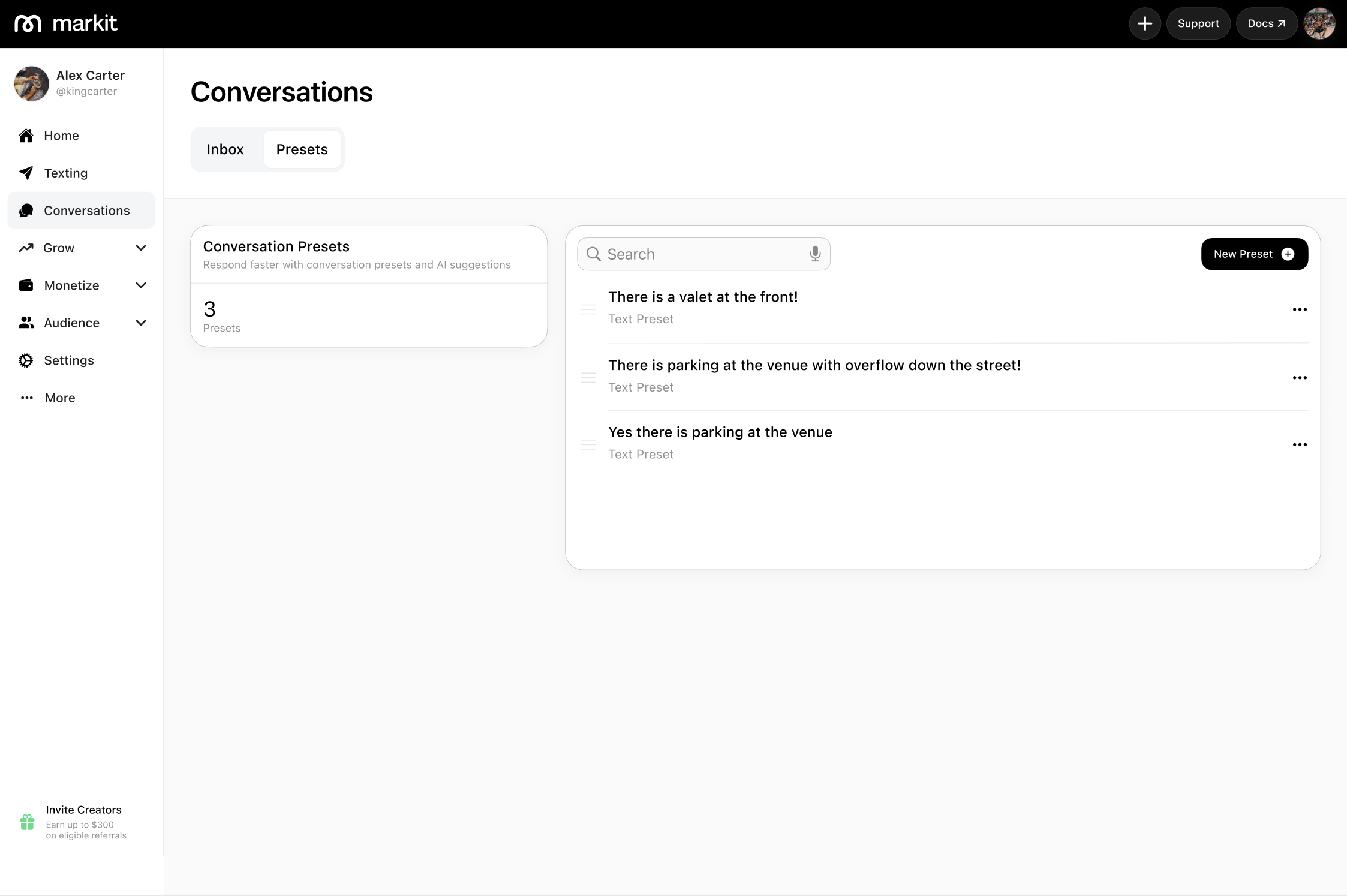
- Navigate to the Conversations tab
- Select on the Presets section tab
- Press the "New Preset" button
- Enter your message template
- Save the preset
- Can drag to change the order of your presets for organization when using the presets

Using text presets
When composing a message in an existing conversation:
- Click the preset button or icon in the message input area next to the + icon
- Browse your saved presets
- Select the preset you want to use
- The preset text will be inserted into your message
- Edit the text if needed before sending
Managing text presets
You can manage your text presets by:
- Editing: Update the content existing presets
- Deleting: Remove presets you no longer need
- Organizing: Reorder the presets in which they appear when selecting one