 Markit | Docs
Luma
Sync your Luma events into Markit and text your confirmed guests from your Markit number.
Overview
If you host events on Luma, you can connect your Luma calendar to Markit and text your guests from your own Markit number. Everyone who registers with a phone number becomes a contact in your Markit audience, so you can keep reaching them after the event.
- Your upcoming Luma events sync into Markit and stay up to date with Luma.
- Guests who register with a phone number are added to the event's guest list and to your contacts.
- When you turn on texting for an event, each guest gets your text when they're confirmed, plus a reminder 24 hours before.
What You Need
- A Markit Pro plan.
- A Luma calendar on Luma Plus. Luma only gives out API keys on Luma Plus.
- A computer. You connect Luma from the Markit web app. The mobile app shows your synced events and the texting switch, but connecting is web only.
Get Your Luma API Key
- In Luma, open the calendar you want to connect.
- Go to the calendar's Settings → Developer → API keys.
- Create a key and copy it.
Connect Your Calendar
- In Markit, open the Integrations tab.
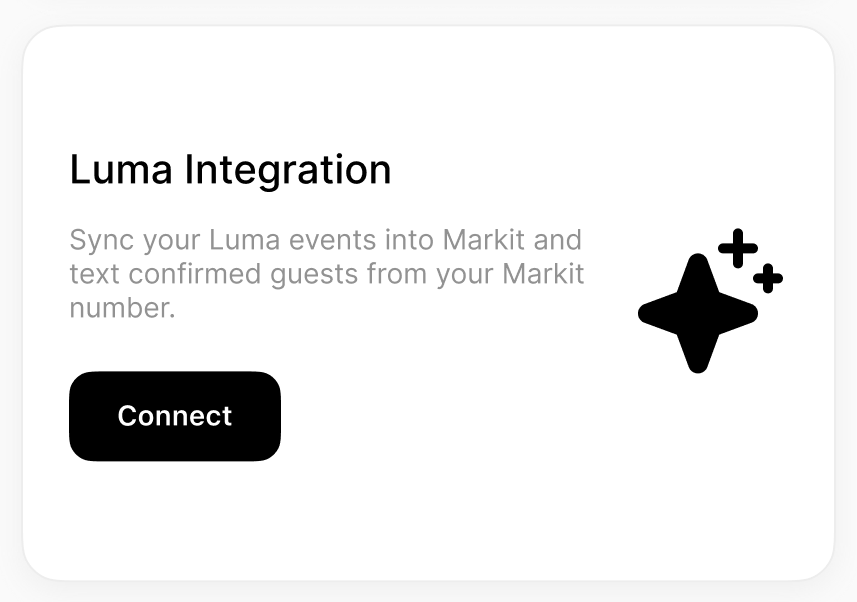
- On the Luma Integration card, click Connect.
- Paste your key into Luma API key.
- Click Connect Calendar.
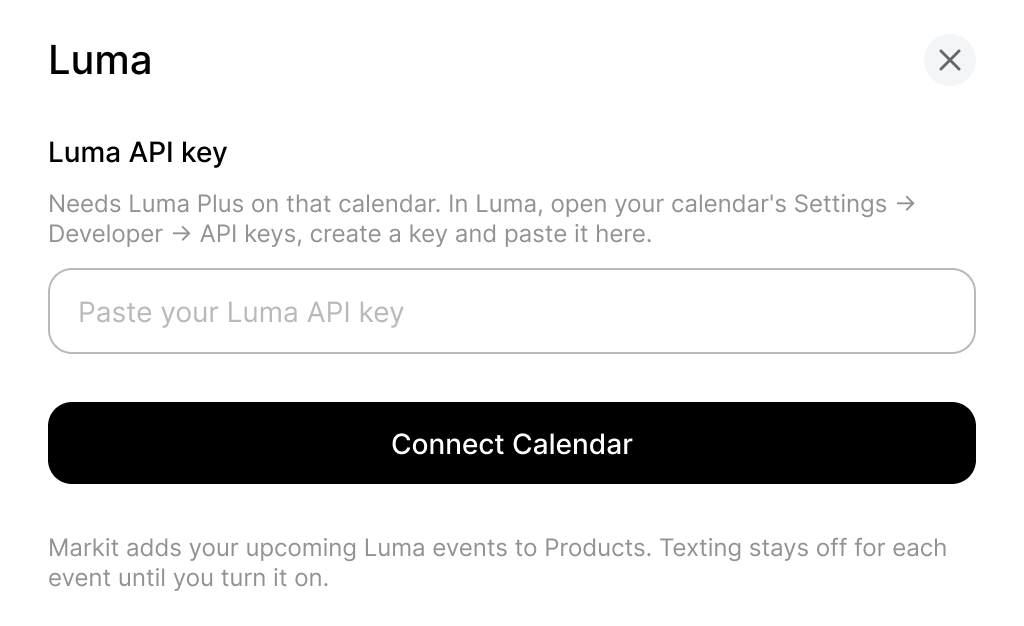
That's all. Markit sets up the connection to Luma for you, so you don't need to add a webhook in Luma.
If the key doesn't work, check that you copied the whole key and that the calendar has Luma Plus.
Manage Your Calendars
Once a calendar is connected, the Luma card shows each connected calendar. Click Manage on the card to open the Luma window again.
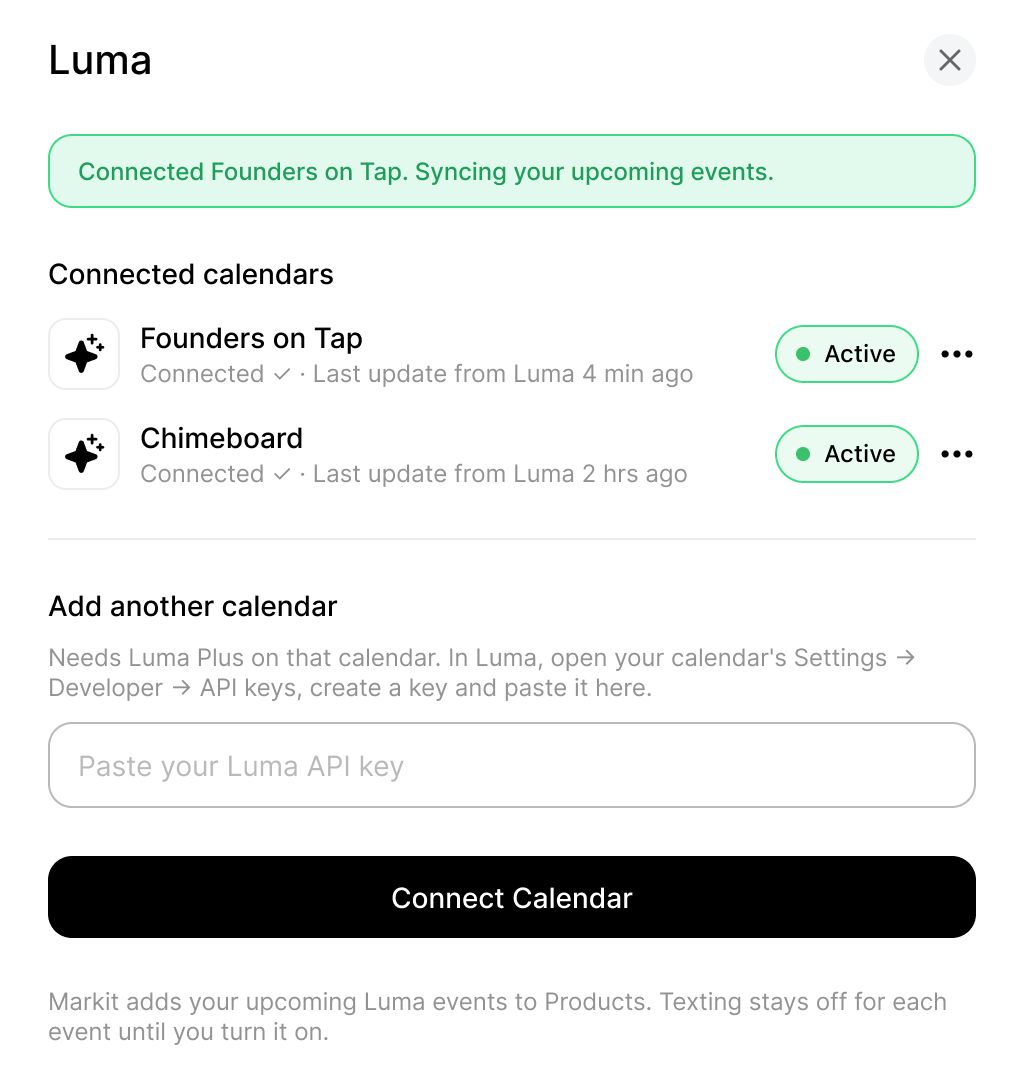
- Add another calendar: paste another calendar's API key under Add another calendar and click Connect Calendar. You can connect as many calendars as you like, and each one needs Luma Plus.
- Disconnect a calendar: click ⋯ next to the calendar, then Disconnect. Markit stops getting updates and new guests from that calendar, so nobody new gets your confirmation text. Events that already synced stay in Markit, and any reminder already scheduled for them still goes out unless you turn texting off for that event first.
How Your Events Sync
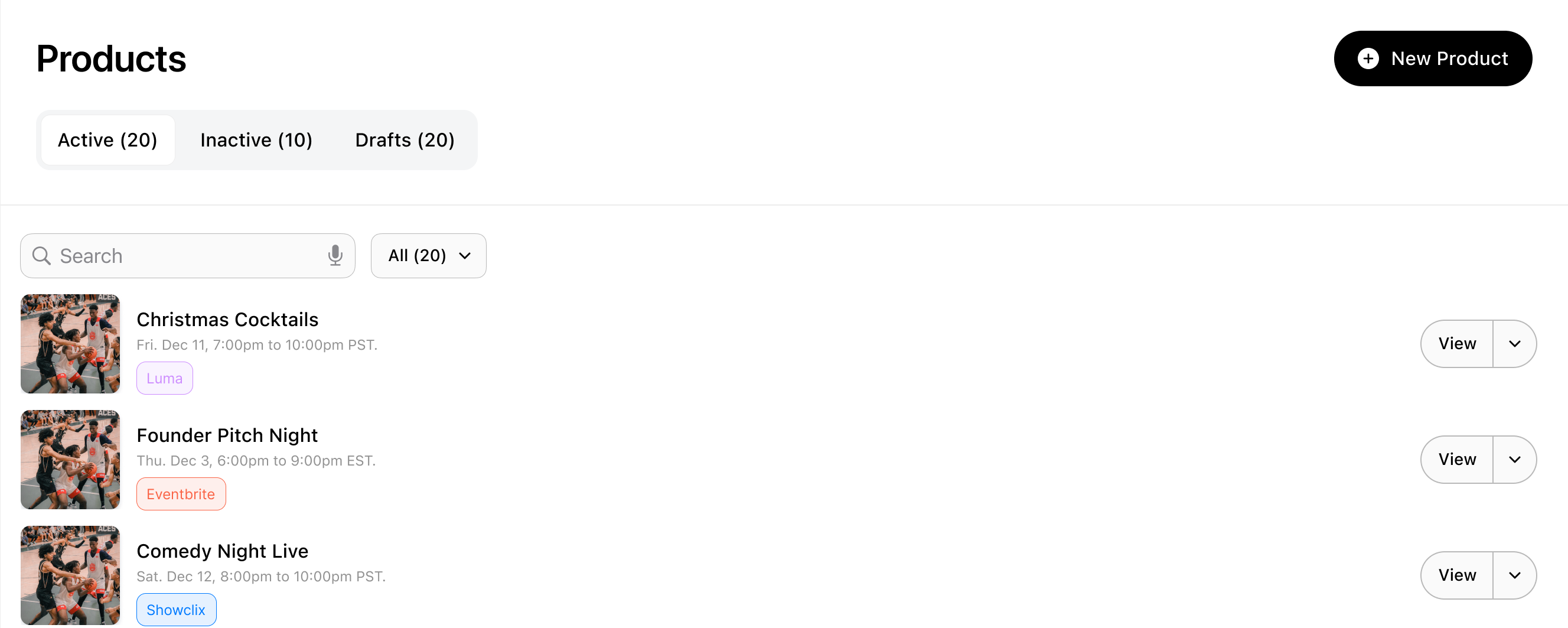
Your upcoming Luma events, and any happening right now, show up in Products as linked Luma events, with a Luma badge. Past events don't sync.
- Luma is where you edit. The event's details come from Luma and update in Markit when you change them on Luma. To change a title, time, place or registration types, edit the event on Luma. The Visit Luma button on the event's dashboard takes you there.
- Ticket types follow Luma's registration types. Each Luma registration type becomes a ticket type in Markit.
- Approval works the same way. If a registration type or the whole event needs your approval on Luma, it becomes a request in Markit.
Your Guests
Each person who registers on Luma with a phone number becomes a guest on the event and a contact in your Markit audience. They're added whether or not texting is on for the event.
- Guests who need approval appear once you confirm them. Confirm or decline them on Luma, and Markit adds confirmed guests to the guest list. You can't confirm or decline requests for a Luma event in Markit.
- Remove or refund guests on Luma. If you change a guest to Not Going, Waitlisted or Pending on Luma, Markit removes them from the guest list and they stop getting texts. Markit doesn't remove or refund Luma guests itself, since Luma handles their registration and payment.
- Only new registrations come over. Markit picks up guests who register after you connect the calendar. People who registered before that aren't added.
Text Your Confirmed Guests
Each synced event has a Text confirmed guests switch at the top of its dashboard. It's off by default, so nobody gets a text until you turn it on.
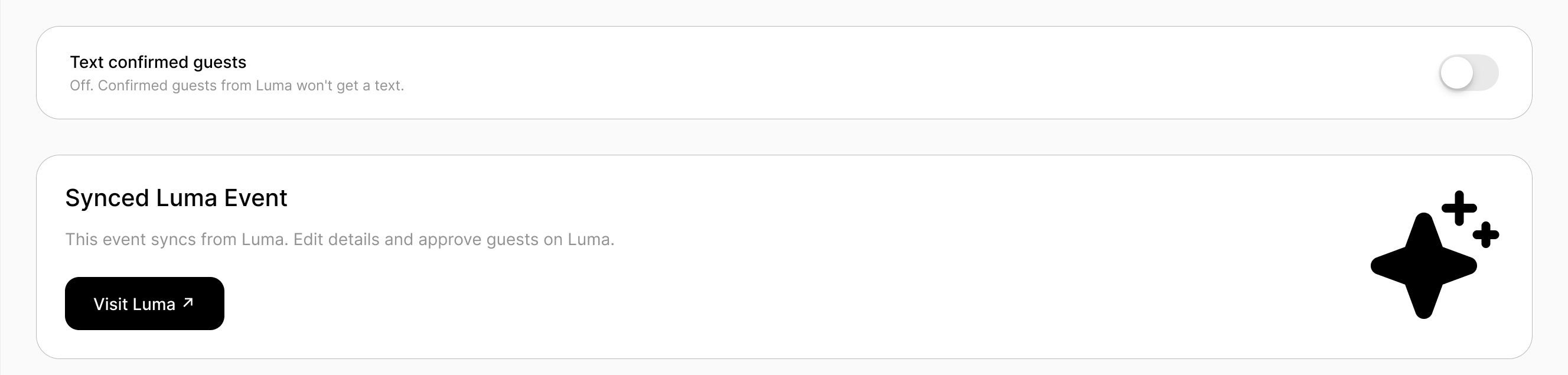
When you turn it on, Markit sets up the event's automated texts:
- A text when a guest is confirmed on Luma: when they register, pay, or you confirm them on Luma. Each guest gets it once, from your Markit number. When every registration type needs approval, this text is labeled Sent Upon Approval.
- A reminder 24 hours before the event. If you turn texting on less than 24 hours before the event, there's no reminder.
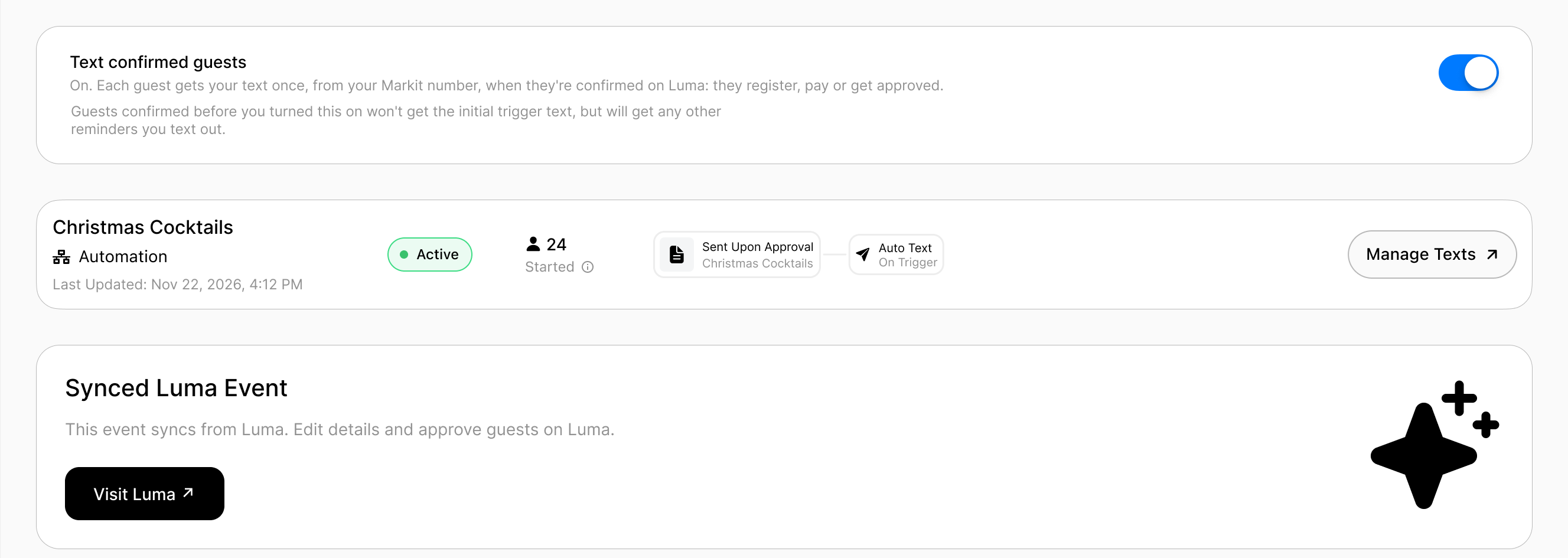
Click Manage Texts to change the wording, or open the event's Texts tab in the mobile app.
Guests who were confirmed before you turned texting on won't get the first text, but they will get the reminder and any other texts you send to the event.
To stop the automated texts, turn the switch off. You can still text an event's guests from Markit any time, like any other event.
Good to Know
- The Luma integration is on the Pro plan, including adding more calendars.
- Luma stays the place to edit your event and confirm or decline guests. Markit shows the details and texts your guests.
- Only guests with a phone number on their Luma registration are added to Markit.
- Disconnecting a calendar doesn't delete its events or guests from Markit.
- Your AI tools can read your Luma events as linked Luma events, but they can't confirm or decline Luma requests. See Available tools.